
What is a Policy?
The policy tab is filled with new exciting features that will allow you to edit specific components to your PB&J location. A policy is a set of guidelines that you can customize for your entire location or specific: classes, cameras, families, or individual viewers.
There are 5 types of policies:
1. Location Policy allows you to:
- Create a location-wide viewing schedule
- Limit the number of guardians or parents in a family
- Set the number of sessions per day each user will have
- Limit the maximum session length
- Enable or disable desktop and mobile device viewability
- Enable or disable Stream Shield
2. Class Policy allows you to:
- Schedule class viewability by day of week and time ranges to an individual or multiple classes
- Enable/disable desktop or mobile device access per class
- Enable/disable Stream Shield per class
3. Camera Policy allows you to:
- Schedule camera viewability by day of week and time ranges to an individual or multiple cameras
- Enable/disable desktop or mobile device access per camera
- Enable/disable Stream Shield per camera
4. Family Policy allows you to:
- Assign a viewing schedule by day of week and time ranges to specific family accounts
- Set a limit on the number of sessions per day per family account
- Limit the maximum session length for family accounts
- Disable/enable desktop or mobile device access for family accounts
- Disable/enable Stream Shield for family accounts
5. Viewers Policy allows you to:
- Assign a viewing schedule by day of week and time ranges to specific viewers
- Set a limit on the number of sessions per day per viewer
- Limit the maximum session length for the viewer
- Disable/enable desktop or mobile device access for the viewer
- Disable/enable Stream Shield for viewers
Features to Note
How overriding and overlapping policies work:
It's important to note that the more specific policies will override the more general ones. For example, a location default policy can have a viewing schedule set from 7am-4pm, but an individual family can be assigned a family policy with a different viewing schedule of 7am-1pm. The family's policy schedule will override the location default policy for that specific family because the family policy that has been applied is more specific.
Another example could be if a viewer has a viewer policy assigned to them that allows for 10 login sessions, but the location default policy only allows for 5 logins - then ultimately that viewer will be able to log in 10 times because that policy type is more specific.
Policy Icons
On the starting page of each of the Policies tabs, you can view the features of an individual policy by hovering the mouse over the icons. Hovering over these icons will summarize what each icon means. Clicking on individual icons will bring you to that specific feature for customization.
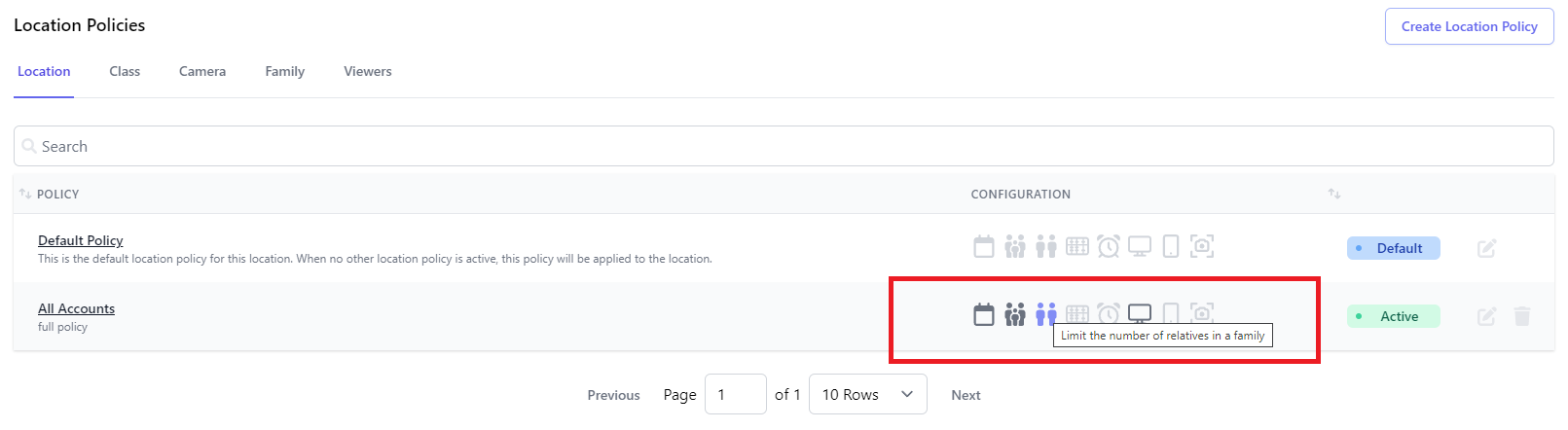
Activate/deactivate, pause or delete a policy.
You can activate/deactivate, pause, or delete any policy by clicking on that policy and going to the settings tab.
Your location can only have one policy at a time. If there is no activated location policy, the default policy will automatically be activated.
Default Location Policy
The default policy will automatically be enforced when you have no other "active" location policy.
You can customize this policy to have your preferred default location features.
Please Note: All classes, cameras, and users will follow the default location's schedule and configurations unless they are assigned a more specific policy.
More Information on Policies
For more information on policies and how to create them, please explore our knowledge-based policy articles. Here you can find out more information about each individual type of policy and its components!
Comments
0 comments