
What is a Class?
The Class section of the PB&J TV Admin Dashboard is the location where you can create classes that your students are enrolled in. This will allow the parents to be able to view their child's particular class.
Within this tab you can:
- Create classes
- Edit existing classes assigned cameras
- Schedule the transfer of students to a different class
- View policies assigned to the classes
Create a Class:
Step 1: Select Create
Step 2: Name the class and assign its cameras
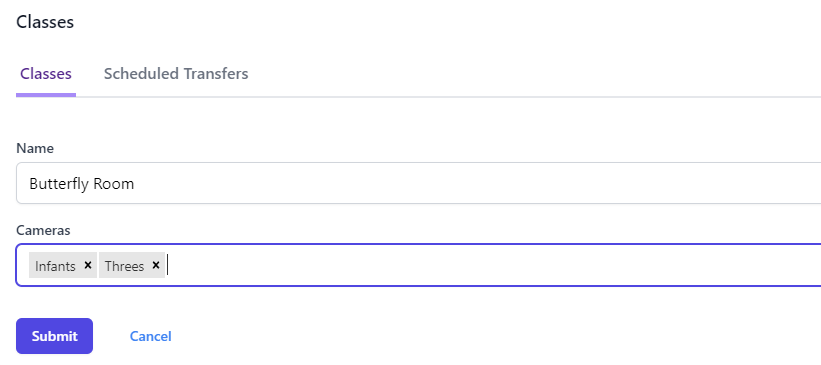
Step 3: Select Submit
Edit Existing Classes
To edit an existing class, you simply click the edit icon to the right of the class  . Here you will be able to edit the cameras assigned to that class.
Class Policies
If a class has a class policy assigned to it, you can find it under the policies column next to the name.
Scheduling Class Transfers
Scheduling an individual student or a group of students to be transferred to or from a class is simple!
Step 1: Select the Classes tab on the left-hand column.
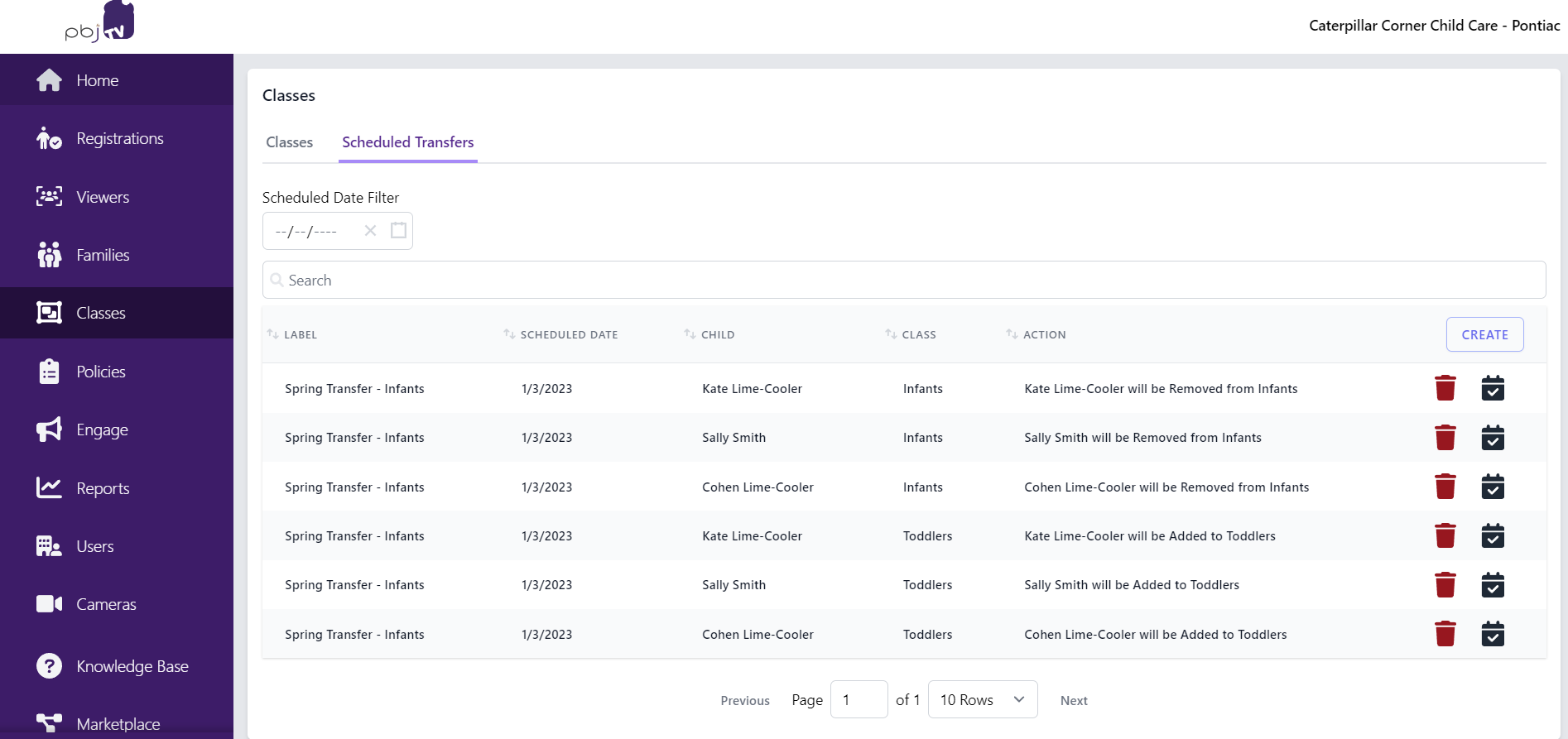
Step 2: Click on Scheduled Transfers
Step 3: Click Create
Step 4: Customize the transfer:
- Label the transfer
- Select or search the children to be transferred under Children. You can also use the icon to transfer children from entireclasses or families.
- Select which "Action" you would like to take place. There are three transfers to choose from:
1. Adding child(ren) to a class
2. Removing child(ren) from a class
3. Transferring child(ren) from class to class
- Schedule the date of the transfer
- Select which class(es) you would like to transfer the students to and from
Once this has all been filled out, simply select "Submit" to save your work!
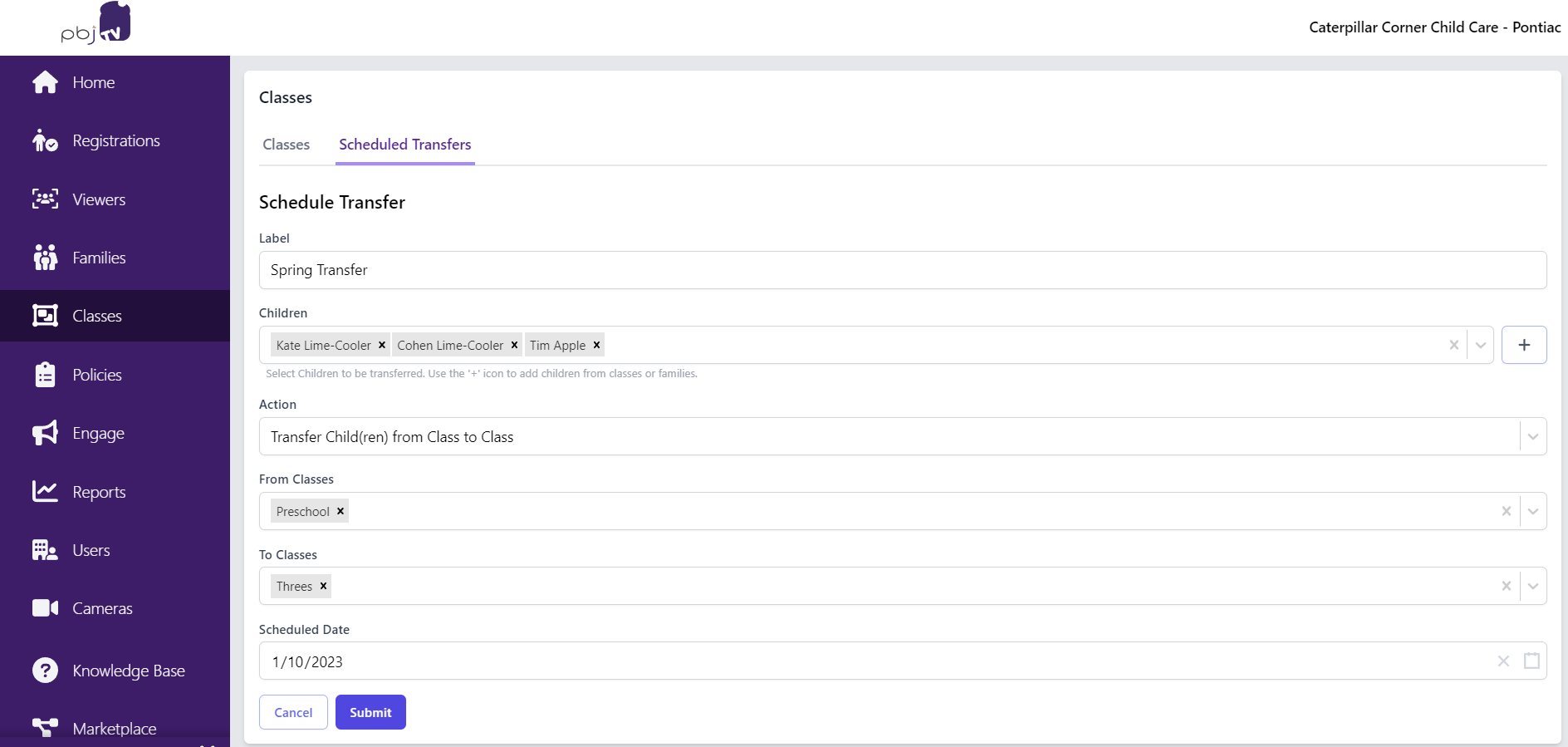
Once you complete the scheduled transfer it will be listed under Scheduled Transfers!
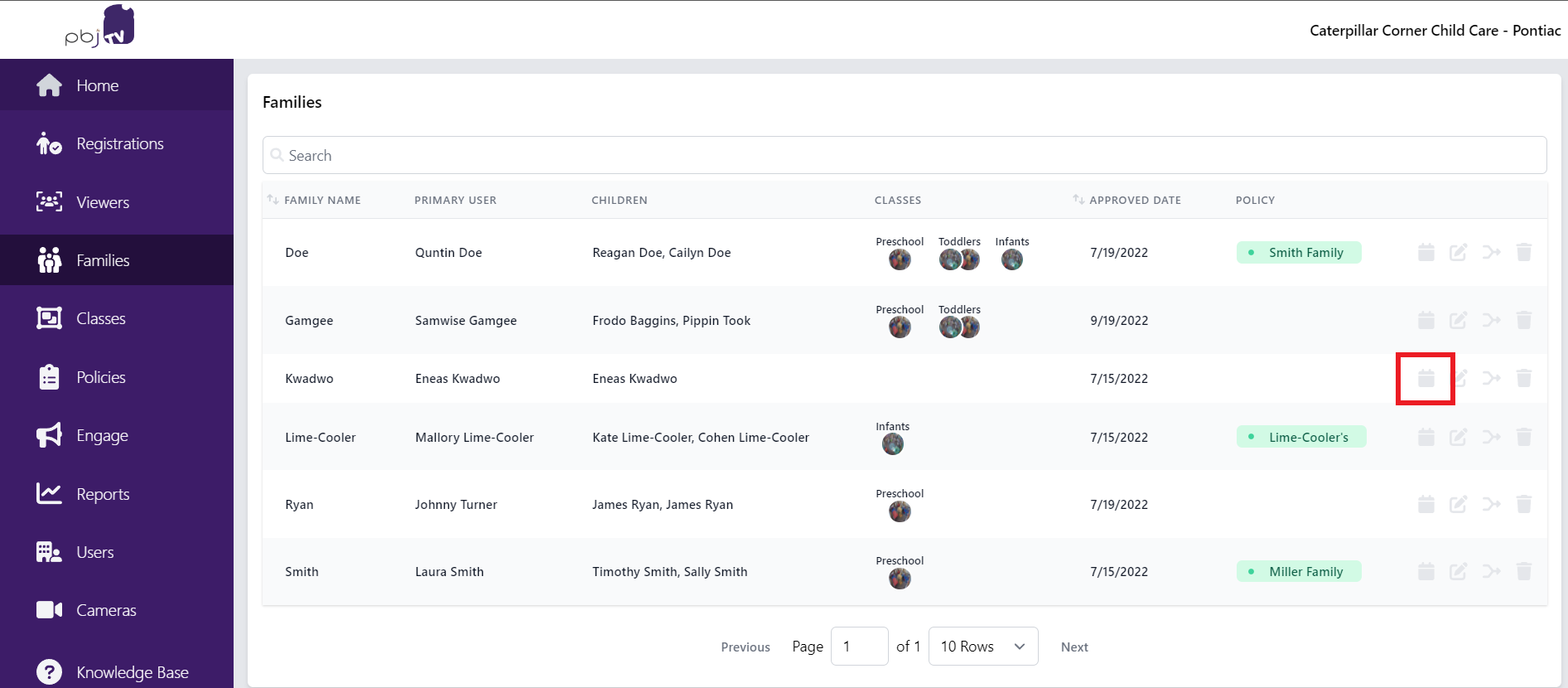
Another way to schedule a specific child to transfer to a different class is through the family section.
Simply select the Class Transfer icon next to the family account of the child you would like to transfer.
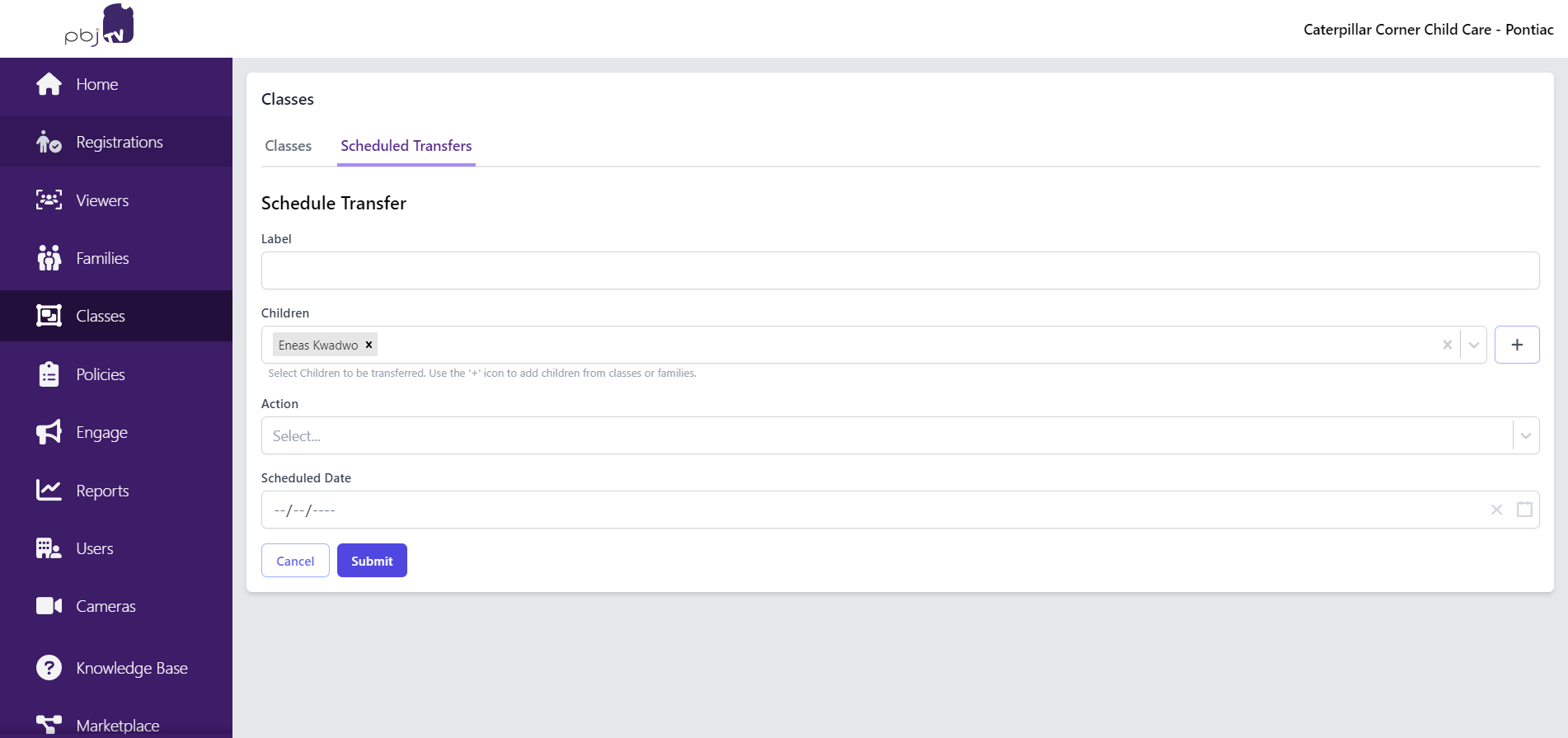
This will bring you to a page where you can now schedule a class transfer for the child(ren) within the selected family.
To Edit a Child's Class Transfer
On the Classes section on the dashboard, select Scheduled Transfers.
All children with scheduled class transfers will be listed.
To edit a child's transfer, select the edit icon. 
To delete a child's transfer, select the delete icon. 
Comments
0 comments